



TLDR: Create a 3D pyramid graphic in PowerPoint by inserting the pyramid shape, customizing its appearance, dividing it into sections, adding text, and reviewing alignment. Enhance engagement with animations to effectively convey your message in presentations.
Creating a stunning 3D pyramid graphic in PowerPoint can enhance your presentations and help convey information more effectively. This step-by-step guide will show you how to design a visually appealing 3D pyramid that can be used for various purposes, such as illustrating hierarchies, processes, or data comparisons.
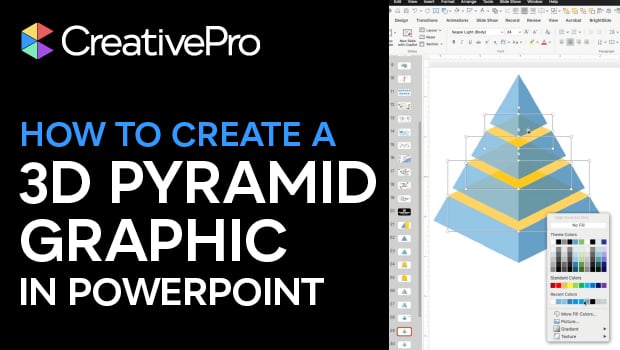
To begin, open PowerPoint and create a new slide. Choose a blank layout to give yourself a clean canvas. Next, navigate to the "Insert" tab on the ribbon, and select "Shapes." From the drop-down menu, choose the "Pyramid" shape. Click and drag on the slide to create the base of your pyramid.
After inserting the pyramid shape, you can customize its appearance by right-clicking on it and selecting "Format Shape." In the formatting pane, you can adjust the fill color, outline, and effects to give the pyramid a 3D look. For a more dynamic appearance, consider adding a gradient fill or shadow effect.
To enhance your pyramid graphic further, you can divide it into sections. To do this, insert additional shapes, such as rectangles or triangles, and place them on top of the pyramid. Adjust their size and color to represent different levels or categories within your pyramid. Group these shapes together by selecting them all, right-clicking, and choosing "Group." This will allow you to move and resize your pyramid as one cohesive unit.
For added detail, consider inserting text boxes within each section of the pyramid. This will provide context and information about each level. Use contrasting colors for the text to ensure readability against the pyramid's background.
Finally, once your 3D pyramid graphic is complete, take a moment to review it for alignment and aesthetic appeal. You can also experiment with animations to make your presentation more engaging. By following these steps, you can create a professional and eye-catching 3D pyramid graphic in PowerPoint that will captivate your audience and effectively communicate your message.
Please consider supporting this site, it would mean a lot to us!
